
Automation 9 min read
How to Automate Manual Data Entry in Your Small Business (2026 Guide)
Stop re-typing invoices and forms. See how a teammate reads your documents, checks them and sends clean data to your CRM or accounting tool, in five steps.
Text size
Font

On this page
- Why is manual data entry so expensive?
- What does AI do with a document?
- How do you automate data entry in five steps?
- What does it look like in practice?
- How accurate is AI data extraction, and how do you keep errors out?
- What are the risks, and how do you manage them?
- When shouldn’t you automate data entry?
- What to do next
You automate manual data entry by letting software read the documents that reach you, check what it read, and put clean data straight into your accounting software, CRM or spreadsheet. A person only looks at the few items the software isn’t sure about. For most small businesses the best first target is supplier invoices, because there are plenty of them, they look alike and a mistake is easy to spot.
This guide covers what manual entry costs, how the technology works, five steps to set it up, a worked example with the arithmetic, and the cases where it isn’t worth doing. It’s one of the seven problems in our overview of AI automation for small business.

Why is manual data entry so expensive?
Because it costs you three times: in minutes, in mistakes and in delay.
- Minutes. Keying in one invoice takes a few minutes. Sixty a week is a working day, every week, for a job nobody enjoys.
- Mistakes. In a controlled study by Kimberly Barchard and Larry Pace, people typing data from paper sheets made errors at a rate of around 1%, and checking the entries by eye did no better than typing them once (Computers in Human Behavior, 2011). In a business, a wrong digit becomes a wrong payment, a duplicate supplier or a quote built on the wrong price.
- Delay. Data sitting in an inbox can’t be used. You can’t see what you owe, what was ordered or which lead is new until somebody gets round to typing it in.
The first step is to measure it. For one week, count how many documents come in and how long each takes to enter. Multiply the minutes by the number of documents and by what an hour of that person’s time costs. That number is your baseline, and every later decision gets compared against it.
What does AI do with a document?
Older tools used OCR, short for optical character recognition. OCR turns a picture of text into characters, but it doesn’t understand them. It can read “1,240.00” without knowing whether that’s the total, a deposit or a phone number.
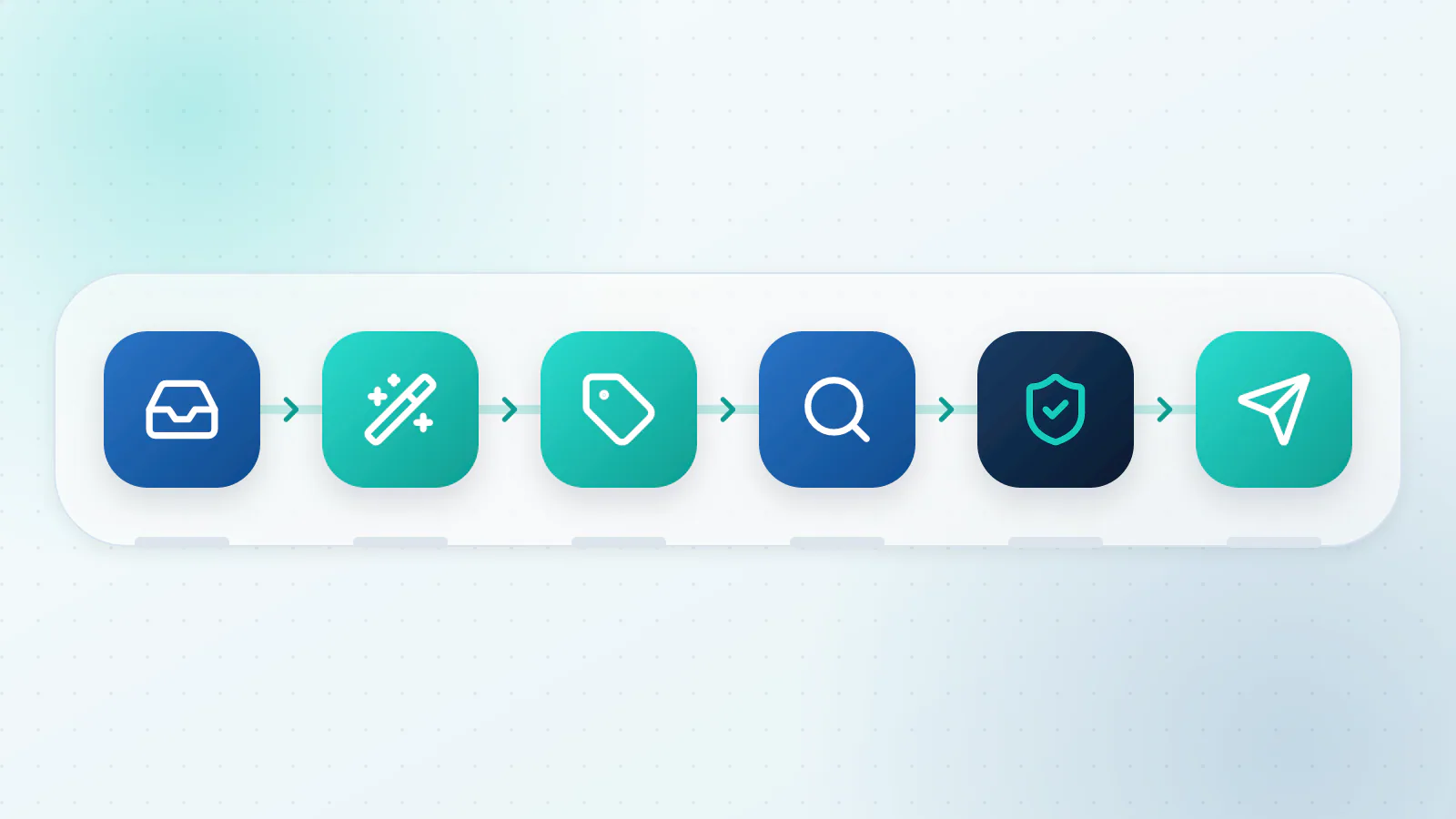
Modern document AI, often sold as intelligent document processing (IDP), goes further. It works out which number is the total, which date is the due date and which lines are items. In practice a good setup runs six stages:
- Capture. Documents are pulled in from email attachments, a watched folder, a web form or an API.
- Clean up. Scans are straightened, rotated and sharpened so they can be read.
- Classify. The software decides what it’s looking at: invoice, purchase order, receipt or contract.
- Extract. It finds the fields you care about: supplier, invoice number, dates, tax, total and line items.
- Check. Your rules are applied, and anything doubtful is flagged.
- Send. Clean records go into your accounting tool, CRM or sheet, and the flagged ones go to a person.
How do you automate data entry in five steps?
Step 1: Pick one document type and list its fields
Start with a single type of document. Write down the fields you use, not every field on the page. For a supplier invoice that’s usually the supplier name, invoice number, invoice date, due date, subtotal, tax, total and currency, plus line items if you need them.
Also decide how each field will be stored. Dates as 2026-10-04 and amounts as plain numbers with two decimals sound fussy, but mixed formats cause the next round of errors.
Step 2: Get the documents into one place
Choose one door in: a dedicated address such as invoices@yourbusiness.com, a shared folder, a web form or an upload page. Then ask suppliers and customers to use it. The automation can only process what it can see, and a single entry point also makes it obvious when something is missing.
Step 3: Let the software read them
You have four broad options, from simplest to most flexible:
- Your accounting software’s own capture. Many accounting tools can read bills you forward or upload. Check what your plan already includes before you buy anything.
- A no-code document tool. Products such as Parseur, Docsumo, Nanonets and Rossum are built for this. You upload samples, check the fields it finds and connect an output.
- A cloud document AI service. Microsoft’s Azure Document Intelligence, Google’s Document AI and Amazon Textract all offer ready-made models for invoices (Microsoft, Google, Amazon). Microsoft’s service returns a confidence score for what it extracts, which tells you how sure it is that a value was read correctly (Microsoft), and Amazon’s invoice output carries confidence values too. They suit a developer or an agency building something around them.
- A general AI model with clear instructions. This works well for messy, varied documents such as order emails, as long as rules check the output.
These are examples, not endorsements. Features and prices change, so test before you commit.
Step 4: Check before anything is posted
This is the step that decides whether you can trust the whole thing. Teach the system to doubt itself:
| Check | Example | What happens if it fails |
|---|---|---|
| Arithmetic | Subtotal plus tax equals the total | Goes to review |
| Required fields | Invoice number and date are present | Goes to review |
| Duplicates | Same supplier and invoice number already exist | Blocked, and you’re told |
| Known supplier | The name matches a supplier you’ve paid before | New suppliers go to review |
| Sensible amount | The total is within the usual range for this supplier | Unusual amounts go to review |
| Confidence | The software’s own confidence is below your threshold | Goes to review |
Start strict. Send plenty to review at first, then loosen the rules once you’ve seen it get things right. Keep a person on anything above an amount you choose, however confident the software is.
Step 5: Post the clean ones and route the rest
Records that pass every check go into your system of record (QuickBooks, Xero, HubSpot, a sheet) using a field mapping you defined in advance. Records that fail go to a review queue. A person sees the original document next to the extracted fields, fixes or approves it, and the fix is logged. Make the notification easy to act on: an email or chat message with a link straight to the item.
Look at the corrections once a week. If the same supplier or field keeps being fixed, that tells you which rule to add.
Once invoices are flowing into your books cleanly, the next job is getting them paid, which we cover in how to automate invoice follow-ups.
What does it look like in practice?
With round numbers (illustrative, not a client result). Picture a ten-person services firm that receives about 60 supplier invoices a week. Keying one in, matching it to the supplier and checking for duplicates takes about 12 minutes, so the work costs 12 hours a week. With automation, suppose nine in ten invoices pass every check and post on their own. The other six go to a person who spends about seven minutes on each: 42 minutes a week. That frees up about 11 hours. At $30 an hour, that’s roughly $340 a week, or about $17,600 a year, before the cost of the tool.
To run the same sum for yourself, multiply documents per week by minutes each to get the hours you spend now. Multiply the expected exceptions by the review time to get the hours afterwards. The difference, times your hourly cost, is the saving. Set it against the cost of the setup and the tool to see how long it takes to pay back. Our AI Automation page has a calculator that does the multiplication.
How accurate is AI data extraction, and how do you keep errors out?
The honest answer is that it depends on your documents. Vendors publish accuracy figures, usually for clean, standard layouts. Yours will depend on scan quality, how much suppliers’ invoices differ from one another, handwriting and any unusual formats.
So test it yourself before you trust it:
- Collect 50 to 100 of your real documents, including the ugly ones.
- Work out the correct answers by hand, once.
- Run the documents through the software and compare field by field.
- Count the errors per field. A wrong total matters more than a wrong note.
- Set your review rules from what you see: any field it often gets wrong always goes to a person.
Different documents deserve different treatment:
| Document | What to expect | How to handle it |
|---|---|---|
| Digital PDF invoice from a regular supplier | Usually reads well | Post automatically if the checks pass |
| Scan or phone photo | Readable, but numbers are more likely to slip | Check the amounts; ask for a clearer copy if it fails |
| Handwritten form | The least reliable | Review every one, or move to a digital form |
| Free-text email order | Needs a language model rather than a template | Review until you trust it |
Keep a person in the loop wherever money is involved. A wrong total posted to your books is worse than a slow invoice.
What are the risks, and how do you manage them?
- Privacy. Documents contain names, bank details and prices. Choose providers that encrypt data in transit and at rest, let you control how long it’s kept, and say in writing whether they use your documents to train their models.
- Access. Give the automation only the permissions it needs, read-only where possible, using its own account rather than your personal login.
- Duplicates. Use the supplier plus invoice number as a unique key, so a retry never creates a second copy.
- Silent failure. A broken connection can stop documents flowing without anyone noticing. Set an alert for “nothing processed today” and compare weekly counts.
- An audit trail. Keep the original document and a log of what was extracted and who approved it. You’ll want it at tax time.
When shouldn’t you automate data entry?
- The volume is tiny. If the job takes under an hour a month, leave it alone.
- You can’t yet say what “correct” looks like. Write the process down first.
- You can remove the need instead. Ask suppliers for electronic invoices, or give customers a web form that feeds your system directly.
- Every document is different and high-stakes, like contracts. Use AI to summarise and flag, not to post.
If the data has to move between several tools after it’s captured, read how to connect your business tools with AI next. For data entry alongside the other work AI can take on, see which business processes AI can automate.
What to do next
If you’d like to see this on your own paperwork, send us five to ten sample documents. We’ll show you what the software reads correctly, what it flags, and roughly how many hours it would give back. Get a data automation demo, or read about our AI Integrations service.

Questions about your own business?
Ask Sam how this applies to you, or book a free 20-minute audit and talk it through with the team.
Frequently asked questions
How accurate is AI data entry?
It depends on your documents. On clean, standard invoices good tools read most fields correctly, but scans, phone photos, handwriting and unusual layouts are harder. Test on 50 to 100 of your own documents, and keep a person reviewing totals and anything the software is unsure about.
Can AI read handwritten invoices?
Sometimes, but handwriting is the least reliable input. Plan to review every handwritten document, or replace the paper form with a digital one.
Is AI data automation secure?
It can be, if you choose well. Look for encryption in transit and at rest, role-based access, clear retention settings and a written statement on whether your documents are used to train models. Give the automation only the access it needs.
How long does it take to set up?
A simple version, one document type flowing into one system, is usually a small project. Several document types and several systems take longer. We can give you a realistic timeline after a first conversation about your documents and tools.
What return can I expect from automating data entry?
Multiply documents per week by minutes each and by the cost of an hour, subtract the time spent on exceptions, and compare the saving with the cost of the tool and setup. Your own numbers decide the payback, so be wary of anyone who quotes a typical return before seeing your paperwork.
Sources
- Preventing human error: The impact of data entry methods on data accuracy and statistical results Computers in Human Behavior (Barchard and Pace, 2011)
- Invoice data extraction (Azure Document Intelligence) Microsoft
- Interpret and improve model accuracy and confidence scores Microsoft
- Analyzing invoices and receipts with Amazon Textract Amazon Web Services
- Document AI processor list (Invoice Parser) Google Cloud