
Automation 7 min read
Stop Tool Chaos: How to Connect Your Business Tools With AI (2026)
CRM, email, spreadsheets and project tools that never agree waste hours. Learn how to connect them, with AI in the middle, in five practical steps.
Text size
Font
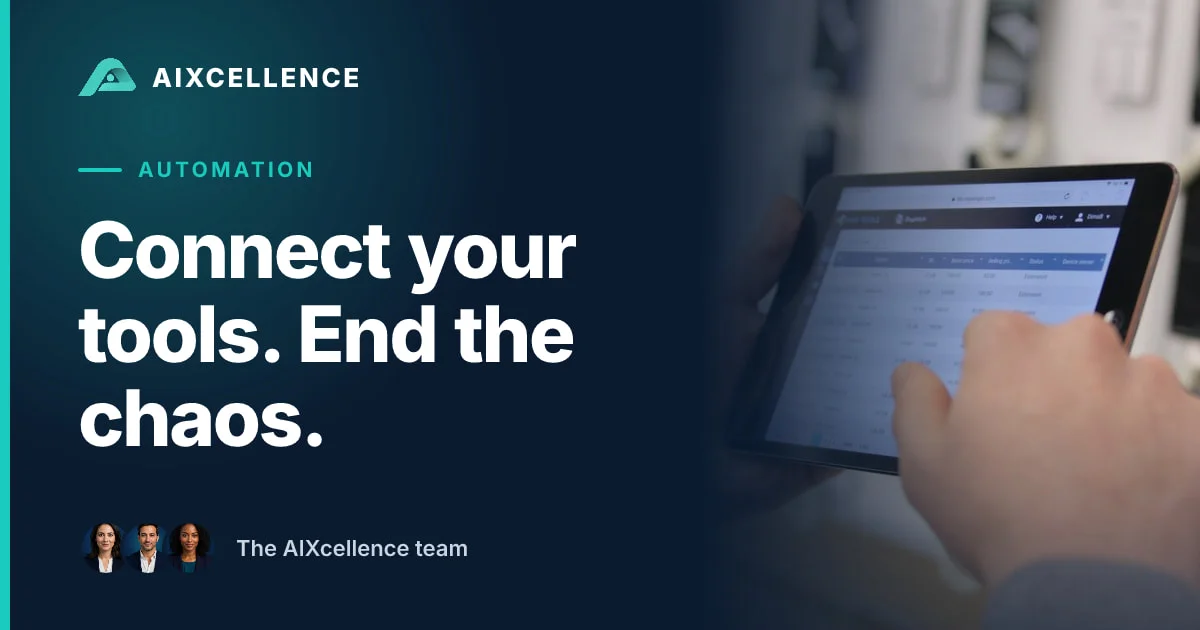
You connect your tools by deciding which one holds the truth for each kind of data (customers, jobs, invoices), then letting an integration layer move changes between them automatically. AI sits in the middle only where the data is messy, like emails and documents. Start with the two or three tools that cost you the most copy-pasting and connect those first.
This guide covers what scattered tools cost, the options for connecting them, five steps to do it, an illustrative example, a security checklist and the cases where it isn’t worth it. It’s one of the seven problems in our overview of AI automation for small business.
What does a fragmented set of tools cost?
The obvious cost is retyping. The less obvious ones are bigger:
- Constant switching. Harvard Business Review reported on a study of 20 teams at three large companies in which people switched between apps and websites about 1,200 times a day, losing roughly four hours a week to getting their bearings again (HBR, 2022). A small business has fewer tools, but the pattern is the same.
- Out-of-date data. When the calendar, the CRM and the invoicing tool disagree, somebody has to work out which is right, and sometimes nobody does.
- A single person who knows how it all fits. When they’re away, things stall.
- A slow start for new people. Each extra tool is another login and another set of habits to learn.
Before you connect anything, do a short audit. List your tools. For one week, note every time someone copies information from one to another. For each tool, write down what it holds, where data enters it and where it gets retyped. The result is your shortlist.
What are your options for connecting tools?
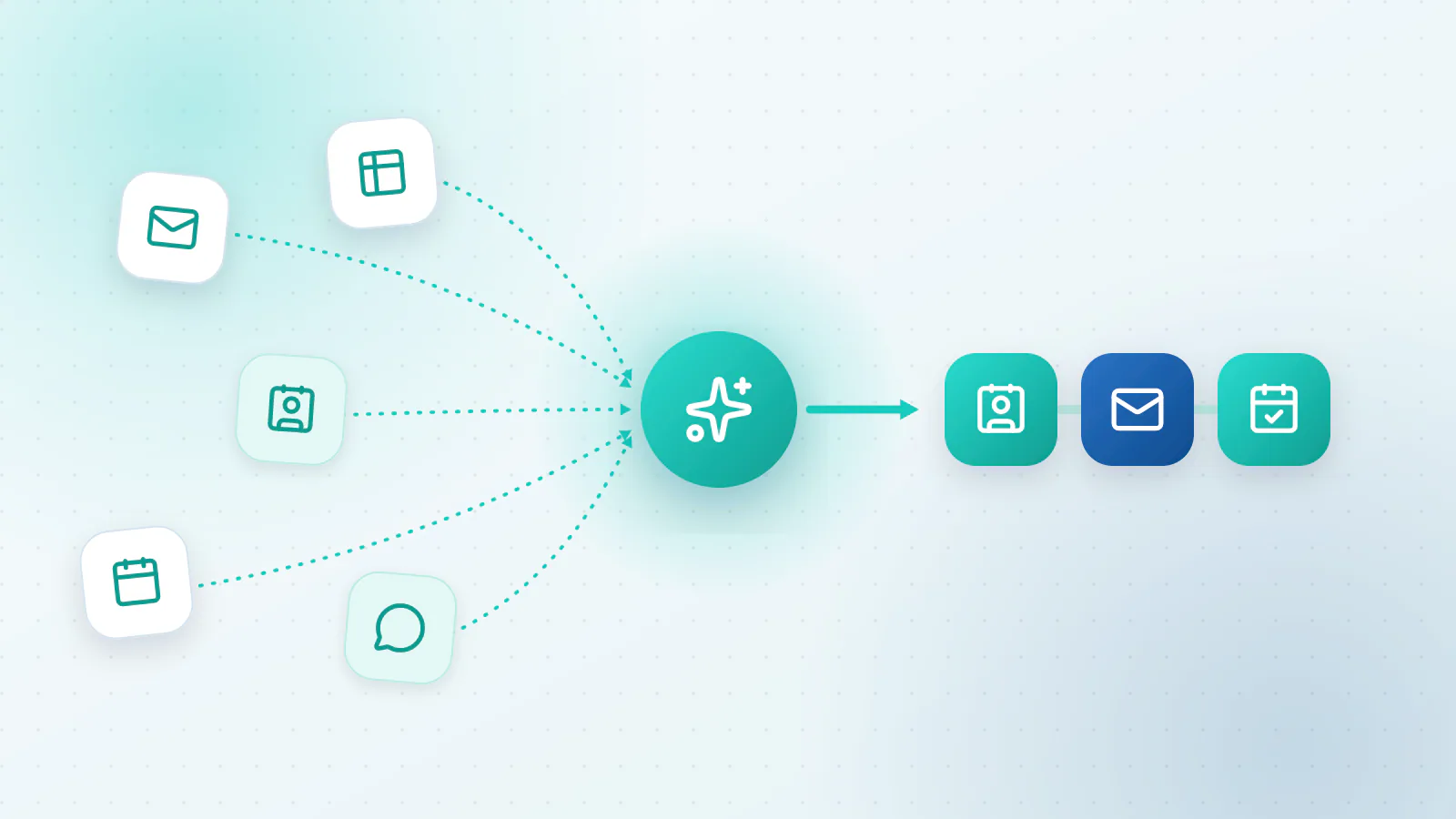
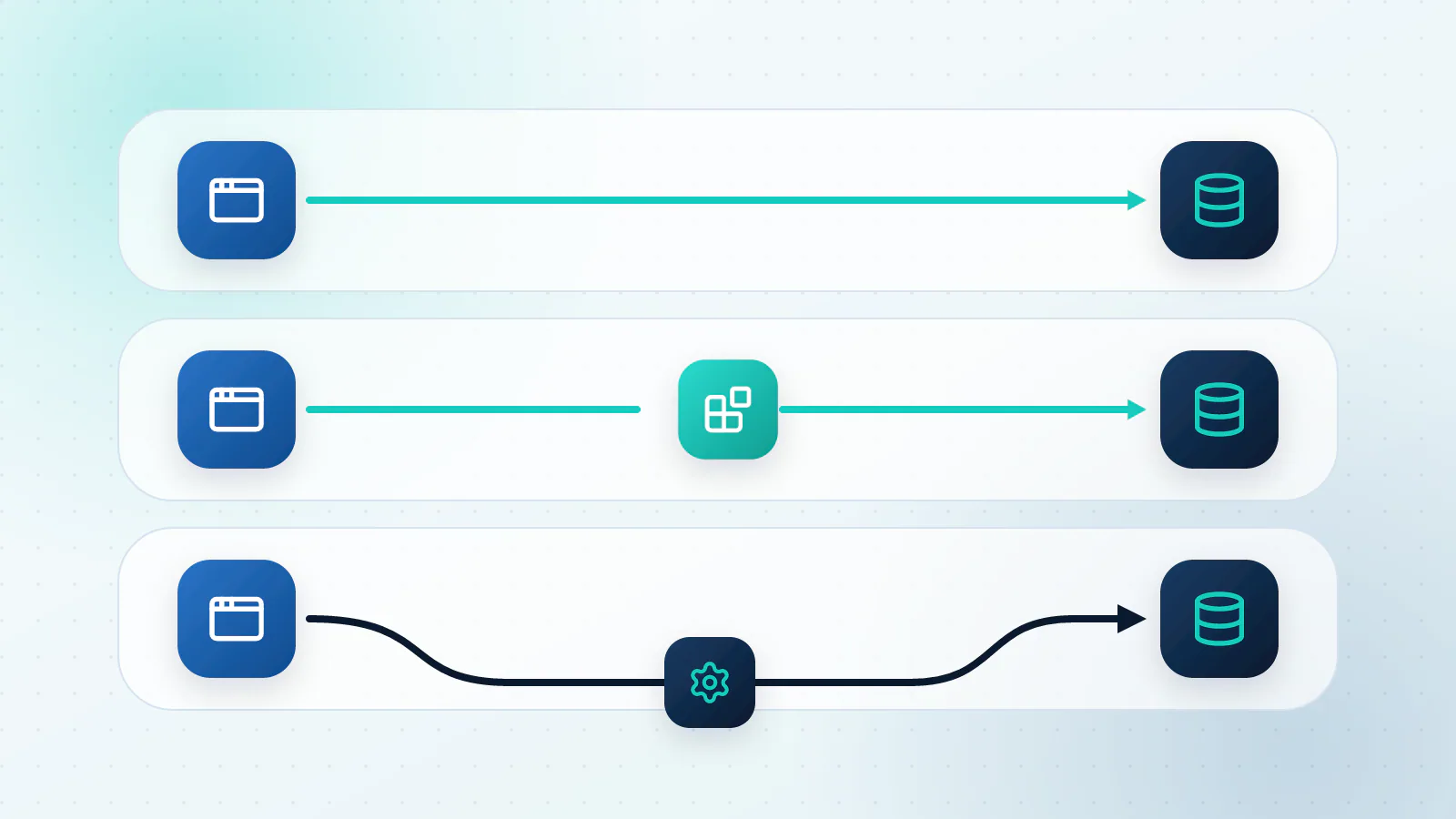
There are five common approaches, and they stack: most small businesses use the first two.
| Approach | What it is | Good for | Watch out for |
|---|---|---|---|
| Built-in integration | A connection supplied by the tools themselves | Common pairs, like your CRM and your email | Limited options; you can’t change the rules |
| No-code platform (Zapier, Make, n8n) | Visual “when this happens, do that” workflows | Most small-business needs; quick to build | Cost grows with volume; complicated logic gets messy |
| Custom code using the tools’ APIs | A developer writes the connections | Unusual rules, high volume, or tools with no ready-made connector | Needs maintenance and someone who understands it |
| An AI step inside a workflow | A language model reads or writes the messy parts | Emails, documents, free text | Needs checks and review |
| An AI agent | A system that decides which steps to take | Multi-step jobs that need judgment | Needs limits and monitoring |
Custom code is the kind of project our AI Software service covers: connections and internal tools built around how your business works.
How do you choose between a no-code platform and custom work? Start with the simplest thing that works, and move up only when you hit a wall. The usual signs are that you keep hitting plan limits, you need logic the platform can’t express, volumes are high enough for cost or speed to matter, or the data is sensitive enough that you want tighter control.
How do you connect your tools in five steps?
Step 1: Map your data and pick a source of truth
For each kind of data (contacts, deals, jobs, invoices, appointments), choose one tool as the master copy. Other tools hold copies, and changes flow outward from the master. Sketch it on a sheet of paper: tools as boxes, data as arrows. If you can’t decide which tool is the master for something, that’s the first problem to solve.
Step 2: Map the fields
Write down how a piece of information is named in each tool and how it should be formatted. A simple table is enough:
| What it is | In the CRM | In the calendar | In accounting |
|---|---|---|---|
| Customer name | Contact name | Attendee name | Customer |
| Email address | Attendee email | Billing email | |
| Service requested | Deal type | Event title | Item |
Also decide how records will be matched. An email address is the usual key for people, and an invoice number for invoices. Without a reliable key, you get duplicates.
Step 3: Set the triggers and actions
Prefer events to schedules. “When a form is submitted” is better than “check every hour whether anything changed”. Connect one direction before you try two-way syncing, and be careful about loops, where two tools keep updating each other forever. Try everything with sample data first, in a test account or a copy of your data.
Step 4: Handle errors and keep a log
Things will fail: a tool will be down, a request will time out, a field will be empty. Plan for it.
- Retry safely. Make every step safe to repeat. Check for an existing record before creating a new one, so a retry never makes a duplicate.
- Respect rate limits. Services cap how many requests you can send. When you exceed the cap they usually answer with HTTP status 429, “Too Many Requests” (RFC 6585), and often include a Retry-After header saying how long to wait (RFC 9110). Your workflow should wait and try again, not give up or hammer the service.
- Alert a person. If a step fails repeatedly, someone should be told, with enough detail to fix it.
- Keep a log. A simple record of what moved where and when.
Step 5: Monitor and maintain
Connections break quietly. Tools update, someone changes a field name, a password expires. Set an alert for “nothing moved today”, look at the log once a week and re-test whenever a tool changes. Name one person who owns the connections, even if that’s a small part of their job. Or hand it over: our AI Operations service watches and fixes connections after launch.
What does it look like in practice?
Picture this (illustrative, not a client result). A new enquiry arrives through the form on your website. The form finds or creates the contact in your CRM. An AI step reads the free-text message and tags it with the service wanted and how urgent it sounds. A reply goes out with a booking link. When the customer books, the calendar event is linked to their CRM record and a task is created for the right person. A chat message alerts the team, and a row is added to a sheet for reporting.
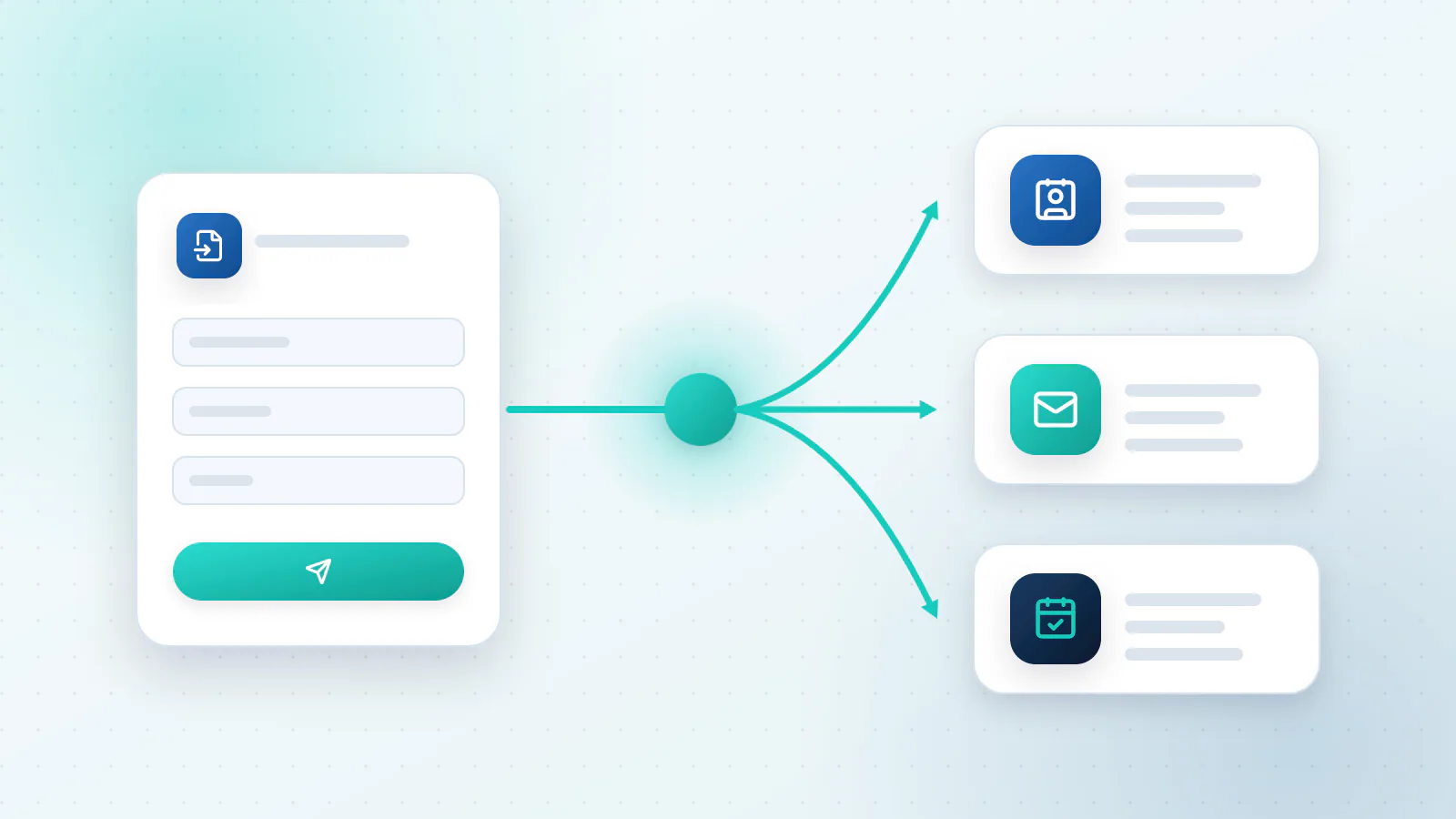
Before, that was five tools, five logins and several rounds of retyping. After, it’s one flow, with people looking at the exceptions: the enquiry the AI wasn’t sure about, or the booking that clashed with something. The same pattern applies to invoices and documents. See how to automate manual data entry and how to automate invoice follow-ups. For the wider list of work AI can take on once your tools are connected, see which business processes AI can automate.
What should your security checklist include?
- Least access. Give each connection only the permissions it needs, and read-only where that’s enough.
- Its own account. Use a dedicated account for the automation, not a person’s login, so access is easy to see and to remove.
- Keys kept safe. Store passwords and API keys in a proper secrets store or the platform’s vault, never in a shared document or a chat.
- Vendor terms. Check whether each provider keeps your data, for how long, where, and whether it uses it to train models.
- A trail. Keep logs of what the automation did, so you can answer “what happened to this record?”
- Offboarding. When someone leaves or a tool is retired, review and revoke access to its connections.
- Backups. Know how to restore your data if a connection overwrites it.
When should you not connect your tools?
- The process is broken. Connecting a bad process just spreads the problem faster. Fix it first.
- You’re about to replace a tool. Wait, or connect only what you’ll keep.
- You have one tool or very low volume. If it takes a few minutes a week, leave it.
What to do next
Send us a list of the tools you use and where information gets stuck between them. We’ll sketch which connections to make first, what each would take and how we’d keep them healthy. Get an integration roadmap, or read about our AI Integrations service.

Questions about your own business?
Ask Sam how this applies to you, or book a free 20-minute audit and talk it through with the team.
Frequently asked questions
Is custom integration expensive?
It can be, but you often don't need it. Built-in connections and no-code platforms cover most small-business needs. Custom work makes sense for unusual rules, high volume or tools with no connector, and most of the cost is in mapping and maintenance, not in the code itself.
How do I handle API rate limits?
Most services limit how many requests you can send. When you hit the limit they reply with HTTP 429 (Too Many Requests), often with a Retry-After header that says how long to wait. Build in waiting and retrying, send changes in batches where you can, and avoid checking for updates more often than you need.
What if one of my tools has no API?
You still have options: email-based triggers, scheduled file exports, a different tool with an open API or a purpose-built connector. We'll tell you what is practical before anything gets built.
Do I need AI to connect my tools?
No. Structured data moves fine with plain rules. Add AI only where the input is messy, such as emails and documents, or where the next step needs judgment.
How do I avoid duplicate records?
Pick a unique key to match records, such as an email address or an invoice number, and check for it before creating anything new. Make every step safe to repeat, so a retry updates a record instead of creating a second one.
Sources
- How Much Time and Energy Do We Waste Toggling Between Applications? Harvard Business Review (Murty, Dadlani and Das, 2022)
- Additional HTTP Status Codes (RFC 6585, defines 429 Too Many Requests) IETF
- HTTP Semantics (RFC 9110, defines the Retry-After header) IETF