Automation 8 min read
How to Automate Invoice Follow-Ups and Get Paid Faster (2026)
Late invoices squeeze cash flow. Learn how automatic reminders, payment links and clear escalation rules chase payment for you without souring the relationship.
Text size
Font

On this page
- Why do invoices get paid late?
- How does late payment hurt your cash flow?
- What does an automated invoice workflow look like?
- Where does AI fit in?
- What do good reminders sound like?
- Will automated reminders annoy your customers?
- What are the common mistakes?
- How do you know it’s working?
- What to do next
You automate invoice follow-ups by setting the schedule once. The invoice goes out as soon as the work is done, with a pay-now link. Friendly reminders go out before and after the due date. Clear rules decide when a person steps in. The software keeps to the timetable, and you deal with the exceptions and the relationships that matter.
This guide explains why invoices get paid late, what it does to your cash, a five-step workflow you can copy, where AI helps (and where it shouldn’t decide), and sample reminders you can adapt. It’s one of the seven problems in our overview of AI automation for small business.
Why do invoices get paid late?
Usually for dull reasons, and most of them are process problems rather than bad customers:
- The invoice went out days after the job, or to someone who doesn’t pay bills.
- The payment terms weren’t clear, or they were buried at the bottom.
- Paying meant finding a cheque book or typing in bank details.
- Nobody reminded the customer, so it slid down their list.
- There was a mistake or a question, and nobody told you.
It’s also common. QuickBooks’ 2026 report found that 59% of the US small businesses it surveyed had invoices overdue by 30 days or more, up from 47% a year earlier. Businesses with unpaid invoices were owed about $17,700 on average, and 39% said a single late payment had made it hard to cover payroll or bills in the past year (QuickBooks). It’s a software vendor’s survey, so don’t lean on the exact figures, but the picture is a familiar one.
Then there’s the awkward truth: nobody enjoys chasing money. So it happens in bursts, usually when cash is already tight. Automation takes the awkwardness out and makes the chasing steady and early.
How does late payment hurt your cash flow?
It ties up money you have already earned. The standard measure is days sales outstanding, or DSO: the average number of days it takes to collect payment after a sale. You work it out as accounts receivable divided by credit sales for the period, multiplied by the number of days in the period.
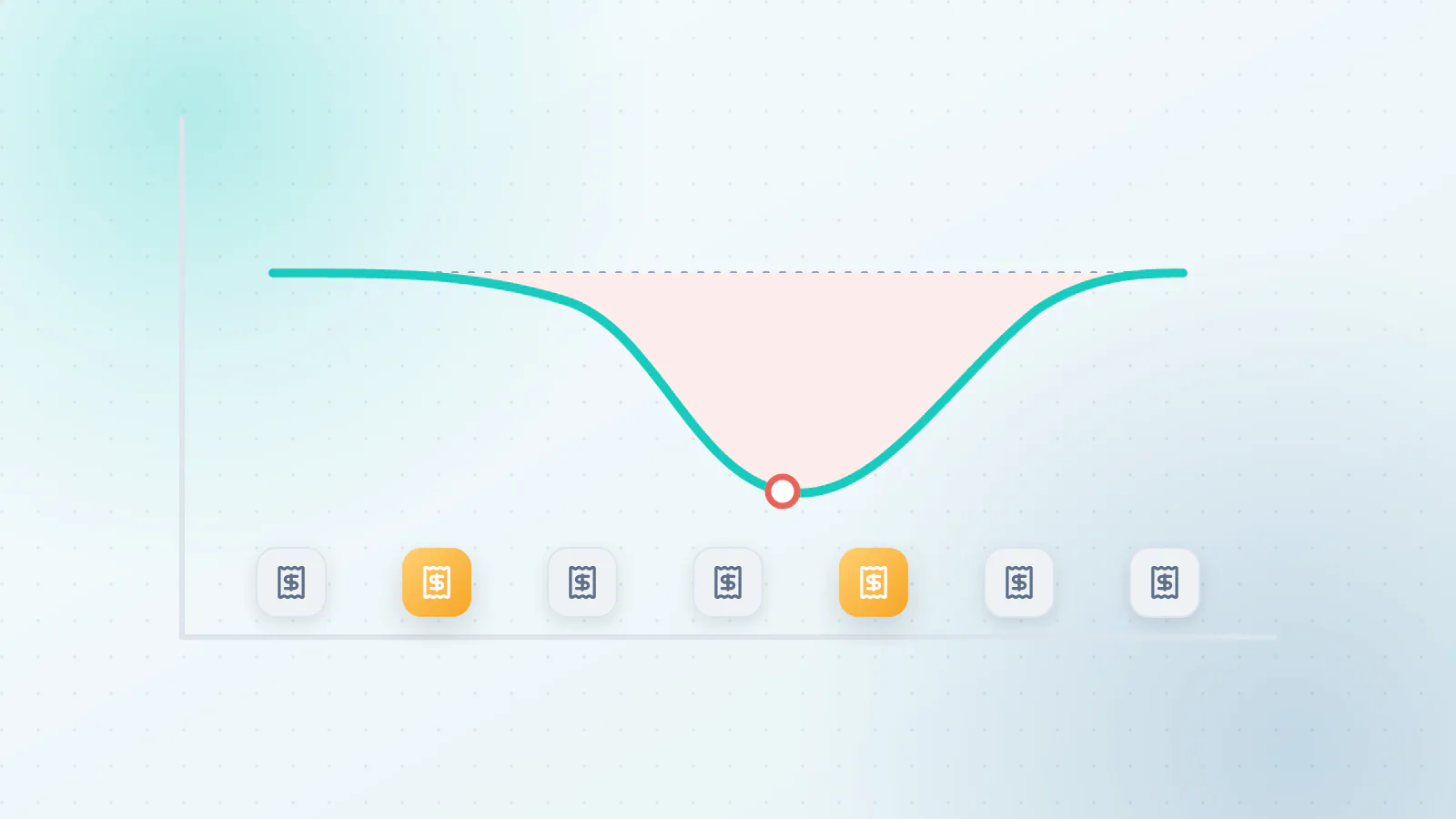
With round numbers (illustrative, not a client result). Suppose you invoice $50,000 a month, about $1,670 a day. If customers take 45 days to pay on average, roughly $75,000 is always waiting to be collected. If you bring that down to 30 days, about $50,000 is waiting, so around $25,000 of cash that was tied up is in your bank account instead.
That’s not extra revenue. It’s money you did the work for already, arriving sooner. For a small business, that can be the difference between paying a supplier on time and not.
What does an automated invoice workflow look like?
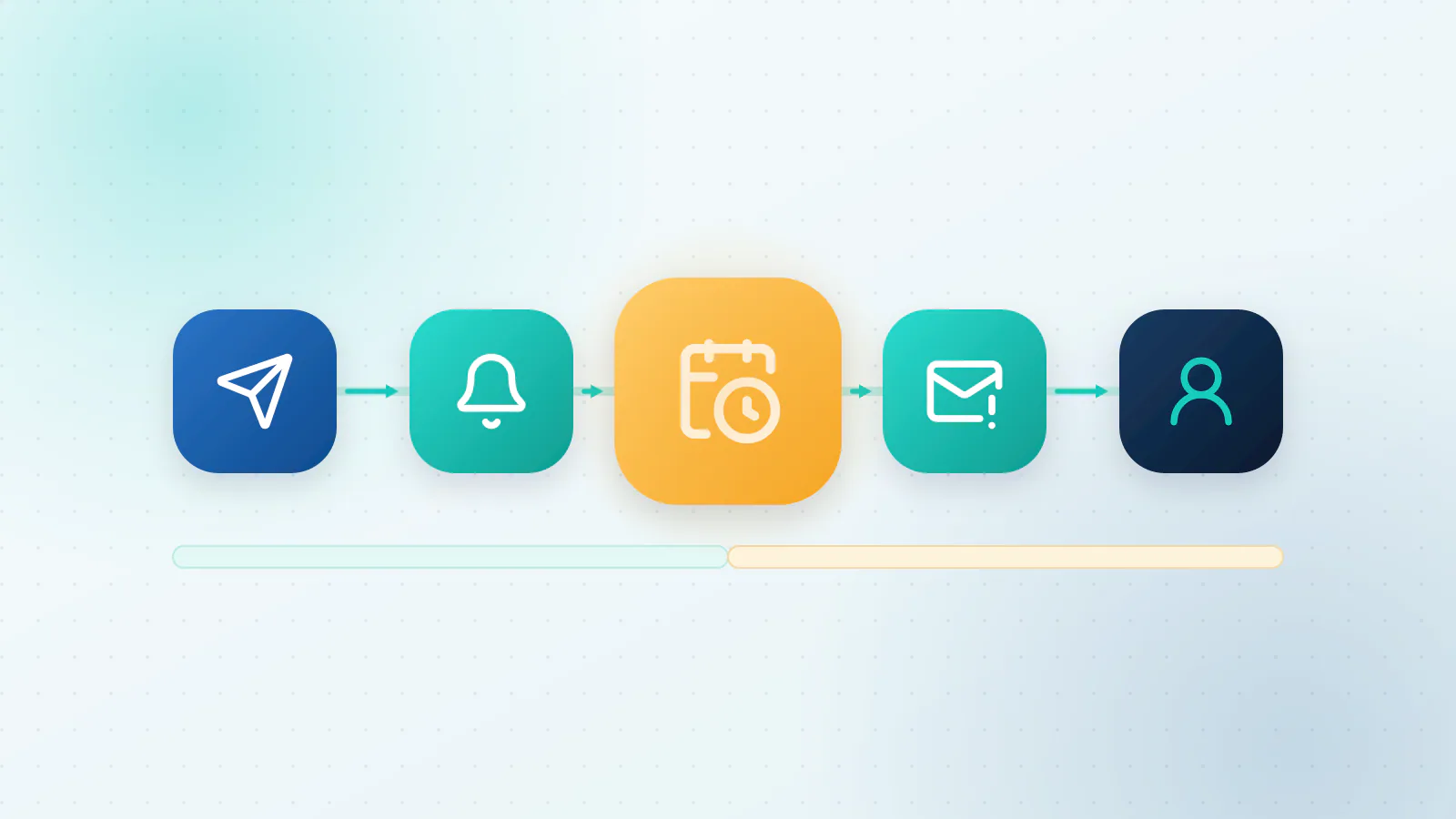
Step 1: Send the invoice automatically when the work is done
Trigger it from the moment the job is marked complete in your CRM, field-service tool or calendar, or use recurring invoices for regular work. Put the due date and payment terms at the top, where nobody can miss them. Send it to the person who pays bills, not only the person you deal with day to day.
Step 2: Put a pay-now link on it
Add a link that lets the customer pay by card or bank transfer in a couple of clicks. Most accounting and payment tools can do this, including QuickBooks, Xero and Stripe. Stripe’s documentation, for example, describes creating a payment link without writing code and sharing it in emails, on your website or on social media, and an invoice link can be shared by email or SMS (Stripe). The fewer steps between “I’ve got the invoice” and “paid”, the less time it sits.
Step 3: Schedule friendly reminders
Reminders work best when they start early and stay polite. Here’s a schedule to adapt:
| When | What goes out | Tone |
|---|---|---|
| 3 days before the due date | A heads-up with the invoice and the pay link | Helpful |
| On the due date | “Due today”, with the pay link | Neutral |
| 3 days after | A gentle nudge, asking whether anything is holding it up | Friendly |
| 10 days after | A firmer reminder, and a call task for a person | Direct, polite |
| 20 or more days after | A final notice in line with your terms, and a personal call | Firm, factual |
Use both email and text if your customers are comfortable with it, and send them from a real person’s name so replies reach someone. Get the customer’s agreement before you text them: in the US, the FCC says a caller needs consent before sending an autodialed or prerecorded text to a wireless number, with written consent for commercial texts and consent that may be oral for informational ones (FCC).
Step 4: Add escalation rules
Decide in advance what happens when a reminder is ignored. For example: at ten days a person calls; at twenty days a final notice goes out; at thirty days new work is paused, if your contract allows it. Charge late fees or interest only if your agreement says so, and check your contract and local rules before you add them.
Step 5: Stop, record and say thank you
The moment a payment arrives, every reminder stops, the payment is matched to the invoice and the customer gets a short receipt and a thank-you. If the customer raises a dispute, reminders pause and the invoice goes to a person. Nothing irritates people more than a “you’re overdue” message after they’ve paid.
Where does AI fit in?
Scheduling the reminders doesn’t need AI. Most accounting tools can already do it, so check what your plan includes before you buy anything. QuickBooks Online can send automatic reminders a few days before or after the due date, and you can schedule email reminders up to 90 days either side of it, but only for invoices you have already emailed (Intuit). Xero lets you set up to five invoice reminders, sent before or after the due date, and you can stop them for a particular customer or invoice, such as one that is partly paid (Xero). AI earns its place in the parts that involve words and judgment:
- Writing the message in your voice, and softening or firming the tone to suit the customer’s history.
- Reading replies, such as “will pay Friday”, “wrong PO number” or “we never got this”, and sorting them into the right next step.
- Spotting disputes and pausing the reminders automatically.
- Tracking promises. If someone says they’ll pay on the 14th, the follow-up moves to the 15th.
- Answering routine questions, like “Can you resend the invoice?” or “Where do I pay?”
What AI shouldn’t decide: whether to charge interest, withhold work or accept a payment plan. Those are your rules, or your call.
What do good reminders sound like?
Short, human and easy to act on. Here are three templates to adapt, with placeholders for the details:
3 days before: Hi {name}, a quick heads-up that invoice {number} for {amount} is due on {date}. You can pay online here: {link}. If anything looks off, just reply and we’ll sort it out. Thanks, {your name}
3 days after: Hi {name}, invoice {number} was due on {date} and we haven’t seen the payment yet. It may have crossed with your payment, or something may be holding it up. Here’s the link again: {link}. Is there anything we can fix on our side?
10 days after: Hi {name}, invoice {number} is now ten days overdue. Could you let me know when we can expect payment? I’m happy to talk it through on a quick call.
Will automated reminders annoy your customers?
Not if they’re personal, well-timed and stop at once when the customer pays or raises a problem. What annoys people is predictable: reminders after payment, the same stiff message on repeat, a tone that leaps from friendly to threatening, and treating a ten-year client like a stranger.
A few habits avoid all of that:
- Send reminders from a real person’s name and a mailbox somebody reads.
- Vary the wording, and keep every message polite and factual.
- Flag key accounts as “handle personally”, so they get a call, not a template.
- Make paying a one-click job.
What are the common mistakes?
- Starting with messy customer data. Wrong email addresses mean reminders that never arrive. Clean the list first.
- No stop rule. Reminders must end when the payment lands.
- Chasing a disputed invoice. Pause and fix the problem instead.
- Fees that aren’t in your contract. Check before you add them.
- Setting it and forgetting it. Look at your overdue list every week for the first month.
How do you know it’s working?
Pick a few numbers and compare them before you start and after a month: your DSO, the share of invoices paid by the due date, the average number of days late, how many invoices needed a personal call, and how much is more than 30 days overdue. Our guide to how to tell if your AI is working covers how to track results without drowning in data.
If your invoices still need typing in by hand, start one step earlier with how to automate manual data entry. And if the payment status lives in a different tool from your jobs, connecting your business tools comes next. For invoicing alongside the other work AI can take on, see which business processes AI can automate.
What to do next
Tell us how you invoice today: which tools, how many invoices a month and where they get stuck. We’ll sketch the reminder schedule and show you which parts your current software already covers and which need automation. Talk to us about your invoicing, or read about our AI Automation service.

Questions about your own business?
Ask Sam how this applies to you, or book a free 20-minute audit and talk it through with the team.
Frequently asked questions
Is automated follow-up annoying for customers?
Not when it is timely, personal and stops the moment the customer pays or raises a problem. Send reminders from a real name, vary the wording and keep a person on important accounts.
Can AI negotiate payment plans?
Not on its own, and it shouldn't. It can offer options you have approved in advance, such as two instalments, and record the customer's choice. Anything outside those rules goes to a person.
How soon should the first reminder go out?
A short heads-up a few days before the due date works well for many businesses, followed by a note on the due date and a nudge a few days after. Adjust the timing to your payment terms and your customers.
What should I do about customers who never pay?
Escalate in steps: a personal call, a final notice that follows your terms, pausing new work if your contract allows it, and then advice on collections. Automation handles the early steps. The later ones need a person and sometimes a professional.
Will this work with QuickBooks or Xero?
Usually. Most accounting tools offer built-in reminders or connections that let another tool read invoices and payments. Check what your plan includes first, then add automation only for the gaps.
Sources
- 2026 Small Business Late Payments Report Intuit QuickBooks
- Send invoice reminders automatically or manually in QuickBooks Online Intuit QuickBooks
- How invoice reminders work Xero Central
- Payment Links Stripe
- Stop Unwanted Robocalls and Texts Federal Communications Commission